

What about PowerPoint 2007, Office 2007, PowerPoint 2010, Office 2010?
VERY IMPORTANT: Apply the latest Microsoft service pack for Office 2007. Service packs fix several bugs in PowerPoint 2007 that can prevent it from working properly with add-ins.
- Click the Office Button then click "PowerPoint Options" at the bottom of the resulting dialog box
- Click "Resources" on the left of the PowerPoint Options dialog box
- In the Resources pane that appears on the right side of the dialog box, click "Check for Updates"
- Apply recommended Office updates.
The compatibility information below assumes
- You have installed SP2 if you use PowerPoint 2007.
- You have downloaded and installed the current version of your PPTools add-ins from our Downloads page, most of which include updates for PowerPoint 2007/2010.
- You're using the 32-bit version of Office; we don't yet support 64-bit Office. See 64-bit vs 32-bit Office to learn whether your copy of Office 2010 is 32- or 64-bit.
- You're not using the "Click to run" version of Office. It doesn't reliably support add-ins.
PowerPoint 2007, PowerPoint 2010 and PPTools - Compatibility
| Add-in | Compatible? | Notes |
| PPT2HTML | Yes | |
| FixLinks | Yes | May have minor problems locating links on some slide masters |
| Merge | Yes | |
| StarterSet and StarterSet Plus | Yes | |
| ShapeStyles | Yes | ShapeStyles does not record the new styles and formatting features in PowerPoint 2007 but it records and applies any formatting features that are backward compatible with earlier Poweroint versions. |
| Optimizer | Yes | Doesn't optimize images on some slide masters |
| ImageExport | Yes | |
| Protect | Yes | |
| Prep4PDF | Yes | |
| Palette | NO | Discontinued, will not be updated. Registered Palette users qualify for a free upgrade to ShapeStyles Try out the free demo, then use the Contact Us link to request your free upgrade. Please supply the name you registered Palette under. |
Do we recommend upgrading to Office 2007 or 2010?
- If you rely heavily on third-party add-ins, test carefully to be sure your add-ins are compatible with the new version of PowerPoint. If possible, try out the new version, but not on a computer you rely on for your everyday work. Set up a test computer, install Office and any "must-have" add-ins and test thoroughly. You can test with the demo versions of our add-ins at no cost.
- If you can't devote a computer to testing, install Virtual PC (free from MS) or VMWare and test in a "virtual machine". Using Virtual PC / VMWare virtual computers
- If you find problems with any of our PPTools add-ins, please let us know about them (use the Contact link at the left of every page on this site.)
Upgrading to Office 2007 or 2010?
If you've decided to update an existing Office setup to 2007 or 2010, do this:
- Uninstall your PPTools add-ins first. Click Start, Control Panel and use Add/Remove Programs to remove All PPTools add-ins.
- Install the new version of Office.
- Start PowerPoint and choose the following security settings:
- Click the Office Button (2007) or File Tab (2010) then click PowerPoint Options at the bottom of the pop-up menu
- In leftmost pane of the PowerPoint Options dialog box that appears, click "Trust Center"
- Click "Trust Center Settings"
- In the leftmost pane of the Trust Center dialog box that appears, click "Add-ins"
- Under "Add-ins" on the right, UNCHECK all three options.
- In the leftmost pane of the Trust Center dialog box, click "Macro Settings"
- Under "Macro Settings" on the right, click "Disable all macros with notification".
- Click OK
- Quit PowerPoint
- Download the latest versions of your PPTools add-ins here and run the installer(s).
If you've already updated your earlier Office to Office 2007 / 2010
You may see messages about how your PTools add-in can't find its files when you start PowerPoint or you add-ins don't seem to be working, go to our downloads page and download the latest version of the installer for your add-in and run it.
In most cases, that will solve the problem. If not, please get in touch with us ... use the Contact link to your left.
If the addins don't work or appear to be disabled
- Click the Office Button (2007) or File Tab (2010) then click PowerPoint Options at the bottom of the pop-up menu
- In the leftmost pane of the PowerPoint Options dialog box that appears, click "Add-Ins"
- At the bottom of the Add-ins pane that appears on the right, next to "Manage:", choose "Disabled Items: then click "Go .."
- If any PPTools items appear on the Disabled Items menu, click them then click "Enable".
- Click Close to return to the PowerPoint Options dialog box.
- Click OK to close the PowerPoint Options dialog box.
- If the newly enabled add-in doesn't work immediately, re-start PowerPoint and try it again.
Toolbars, Menu items
PowerPoint 2007 and later no longer have toolbars or menus. Toolbars now appear on an Add-Ins tab. For example, here's what the Add-Ins tab looks like after installing the PPTools Starter Set:
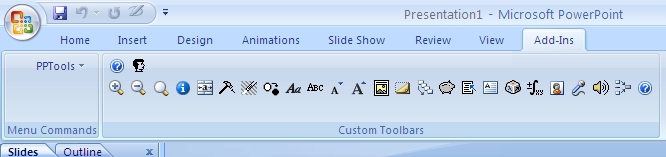
This makes add-ins less convenient than in previous versions of PowerPoint. You now must first click the Add-Ins tab in order to use them. But read on ...
Make your add-ins more accessible
Though you can't change toolbars and menus in PowerPoint 2007 and later, you now have the Quick Access Toolbar (QAT), which you can customize. To make your PPTools and other add-ins easy to get to, do this:
- At the right of the QAT, you'll see a small downward pointing arrowhead. Click it to open the "Customize Quick Access Toolbar" menu.
- On the Customize QAT menu, click "More Commands" to open the "Customize the Quick Access Toolbar" dialog box.
- Underneath "Choose commands from:" pick "Add-Ins Tab"
- On the list of commands that appears below, double-click "Custom Toolbars" and "Menu Commands". As you double-click each of these, it appears in the list on the right,
- Make certain that under "Customize Quick Access Toolbar" it says "For all documents (default)".
- Click OK
You now have two new buttons on the QAT. One exposes the toolbars and buttons your add-ins have installed, the other makes the add-ins' menu items available.
Uninstalling
To uninstall PPTools add-ins, use Start, Control Panel, Add/Remove Software as you would for any other program.
Because of changes in PowerPoint 2007 and later, the uninstaller may leave the PPTools menu item and toolbar buttons behind on the Add-Ins tab. To remove one of these "orphan" toolbars, right-click any button on the toolbar and choose "Delete Custom Toolbar" from the pop-up menu.
[Previous] [Home] [Next]