
 Newsfeed
How does Merge work?
How Merge Works
Merge has two modes: Slides and Presentations.
IMPORTANT: No matter which mode you choose, please do not store your Excel and PowerPoint files, or any files you'll merge INTO your PowerPoint file or any output files on OneDrive, SharePoint or any folder that's synched with them or any other cloud service. It won't work.
Slides mode
Merge starts with a single-slide template presentation and merges your data into it.
Slides mode turns one template slide into a presentation with many slides, one for each record in your data file. One row in your Excel worksheet becomes one slide in the merged presentation.
Slides mode is great for creating certificates, awards slides or similar presentations where you have a list of names, places, pictures, sounds or movies that you want to turn into a lot of identical slides in a hurry.
Each slide can have as many merge fields as you like, but your Slides mode presentation can have only one slide.
Presentations mode
In Presentations mode, Merge starts with a template presentation containing any number of slides. It creates copies of the template presentation. Each copy is customized with the data from one row in your Excel worksheet becomes a complete new customized presentation after the merge.
Here's how you'll use Merge in practice
View a Merge How-To video tutorial created by Webucator's customized instructor-led training services.In a nutshell: Merge uses "field names" that you define in your data file, searches for them in the PPT template file and replaces them with actual data from your data file.
Your Excel data file
Start with a data file in Excel XLSX format.
Here's a simple example from Excel:

A few important points to remember:
- Merge assumes that the first row of the Excel file contains the names of the "fields" you want to merge. For example, :Name: is the field name. The actual names you want to merge into your presentation are in the rows underneath it.
- There should be no blank rows before or in the middle of your data. A blank row tells Merge "Stop here. Nothing more to do."
- Each field name MUST be surrounded by colon characters, like :This: (in the Excel data file and in the PowerPoint file you'll be merging into
- The capitalization of the field names in the Excel file and PowerPoint file must match. :Name: in one and :name: in the other won't work.
- Your data file can include more fields than you intend to use. Unused fields and data (that is, a :Field: in your Excel file that doesn't have a matching :Field: in your PowerPoint file) are ignored. That way, you can use a single data file to drive several different merges, each of which uses different data.
- You can merge pictures, sounds, movies and the contents of external text files as well as text. You'll see an example of how to set up your data file for that in the section about Presentation mode below.
Once you have your data ready, you need to tell PPTMerge what to do with it. Where should it put all the text, pictures and so on? For that, you'll create a "template" PowerPoint file.
Your PowerPoint template file
A template file is an ordinary PowerPoint file that you've added "merge fields" to. Merge fields are just bits of text or shapes with text that tell Merge where to insert merge data, how to format it, and which data to insert.
For text data, the merge field is the name of the field in the Excel file.
For example, if you're creating an awards presentation, you might have fields called :Name: and :Award: in your data file, as in our example above. Wherever you want to insert the name of the award winner in your presentation, simply type :Name: in a text box on one or more of the slides in your template presentation. Type :Award: wherever you want the name of the award to appear, and so on.
As we mentioned, each field must have colons before and after like :This: and the capitalization in both the data file and the PowerPoint file must match.
By now, you may be wondering why the big deal about :colons:. Well, suppose your field name was "name" and you wanted to merge that into:
The name of the next award winner is name
If Merge didn't insist on colons around field names, you'd get:
The Steve Rindsberg of the next Merge Master winner is Steve Rindsberg
Really, one "Steve Rindsberg" would have been enough, thanks. so instead, use :Name: and :Award: as the field names and in PowerPoint, type:
The name of the next award winner is :Name:
A Slides Mode example
Here's an example template file for just such an awards ceremony:
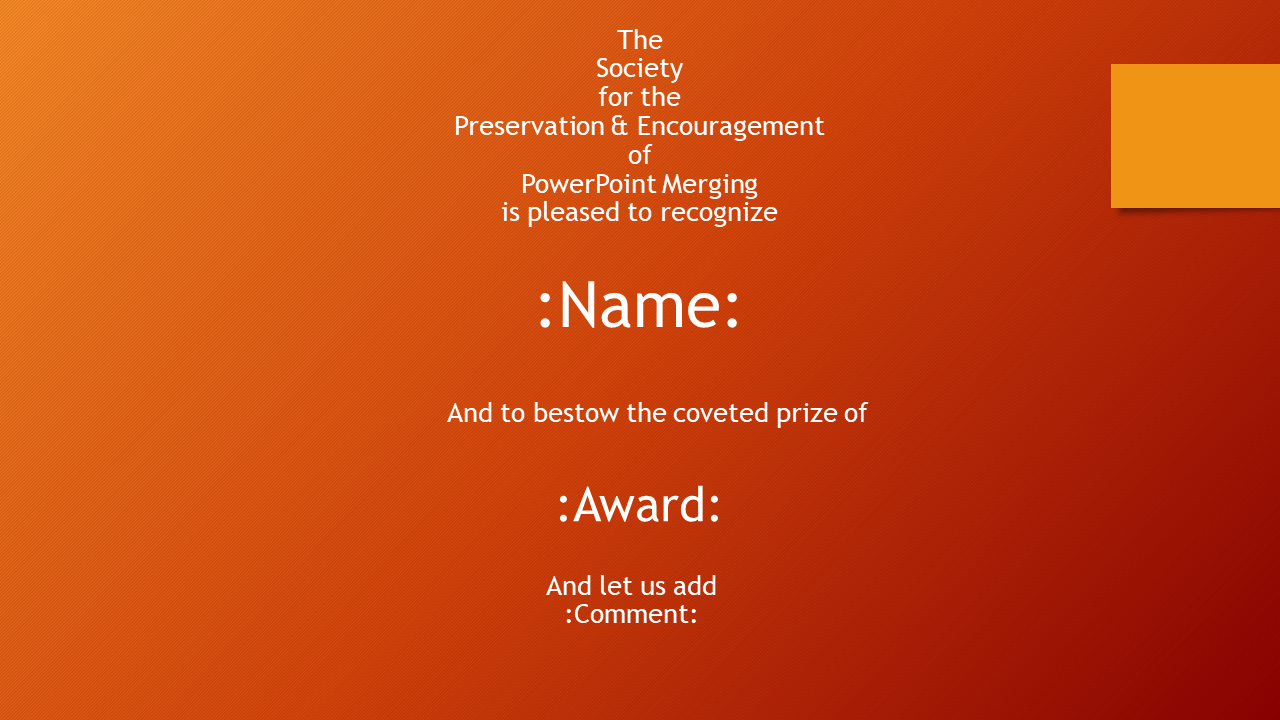
You've already seen the data we'll use for this project.
Important points to remember:
- For Slides mode, there can only be one slide in your template PPT file
- For each data field you want to merge, include the field name somewhere on the slide. Important points:
- Colons around the field names.
- The field name must be spelled exactly as it's spelled in the data file; uppercase/lowercase is signficant
- You can use the same field name multiple times on the slide if you like
- You don't have to merge every data field in your data file.
- This example only uses a few of the types of data Merge can work with. See the Presentations mode example for more ideas (pictures, movies and more). You can merge the same types of information in both modes. The only exception is @filename fields, which work only in Presentations mode.
When you're ready to merge:
- Click the Slides Merge button in the Merge group on the PPTols tab of the ribbon
- In the dialog box that appears, choose the merge mode you want, the Excel data file and sheet within the file to merge from.
- Click Load Data then Show Data to view your merge data.
- Browse to choose a file or folder to save the merged results to.
- Click Merge and watch the fun.
Merge creates a new slide for each record in your data file and merges the data for that record into the new slide, so you end up with something like this:

Presentation Mode example
Instead of starting with a single slide and creating additional slides, Presentation mode starts with a single presentation that contains one or more slides, and creates additional presentations, each identical to the template presentation, but with your data merged into it.
In this section, we'll show you how to set up your data and template file for Presentation mode merges and also introduce some of Merge's advanced features.
Here's the data file we'll be using for this example (split into two screens to make it easier for you to read):


Note that there are a few new tricks that you haven't seen yet:
- @filename When Merge creates multiple presentations, it names them automatically. It names the presentations 1.PPT, 2.PPT and so on. That saves you the trouble of naming each presentation as it's created, but how are you going to know whose data is in which PPT file?
Easy! Add a @filename field to your data file. In the @filename field of each record, type the name you want Merge to use for the PPT file it creates from that record's data. Merge will now give the file the name you requested. You don't need to specify the full path; Merge asks where you want to save the merged presentations when you run the merge.
Excel thinks @filename is a formula and complains when you enter it, so type '@filename instead -- ie, type a single-quote character first to tell Excel to treat it as text, not a formula. That's a straight single quote, on the keyboard just to the left of the Enter key, not the "true" opening quote on the same key as the tilde (~). - PIC: SND: VID: fields. Merge isn't just about text. It can merge pictures, movies and sounds too. You set these up as PIC (picture), SND (sound) and VID (video/movie) fields in your data file, then supply the full path to the picture, sound or video you want to insert in the data for each field.
- TXT: Merge can also insert the contents of external text files into your presentations. To do this, you use a TXT:name data field in the data file and a placeholder rectangle with TXT:name as its text, just as you'd do with other similar file-insertion data fields like PIC:, SND:, VID: etc.
- UNI: inserts the contents of Unicode-encoded text when you do the merge. This enables you to include text in languages like Chinese/Japanese that regular merge fields don't support.
Note: By default, Merge looks for PIC:, SND:, etc. files in the same folder as the merge template PPT file. If your files are stored there, you don't need to specify a full path to the file, just the filename itself in the data file. You can merge images, sounds and videos from files on a network or even on the internet by supplying the full path to the file: c:\My Documents\My Pictures\Picture.jpg or http://www.someplace.com/images/picture.jpg. Merge doesn't allow merging text files using URLs, however.
Here are the slides in our sample Presentations Mode template, which might eventually become a series of presentations, one about each PowerPoint MVP on the MS PowerPoint newsgroup.

The first slide uses three text placeholders, :name:, :specialty: and :startdate:
This time, we've used special characters at the beginning and end of each placeholder (and each matching field name in the data file) to avoid confusing placeholders with literal text.
There's also a rectangle with the text PIC:Portrait in it. This is the placeholder for the picture whose filename is supplied in the data file, in the PIC:Portrait field. When it merges the data, Merge will add the specified picture, fit it into the placeholder rectangle, making it as large as possible without distorting it, then make the placeholder disappear.
Hint: Always use a shape like this to hold pictures or other similar merged content, NOT a text box. You can type the merge field name directly into the shape if you start typing while it's selected.
If no picture file name is supplied or the file isn't available, Merge simply makes the placeholder invisible.
To create a picture placeholder, simply draw a rectangle, then while it's still selected, type PIC:name where "name" is the name you want to identify the picture with. In this case, it's Portrait.

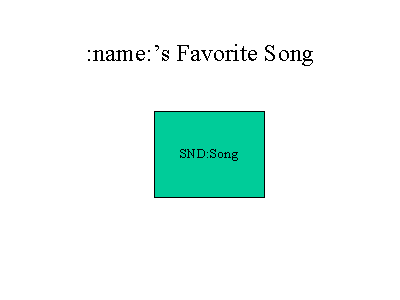
On these two slides, we've used the :name: text placeholder again and also added new movie and sound placeholders. These work exactly the same as PIC placeholders, but you use VID: and SND: for Video/Movies and Sounds respectively.
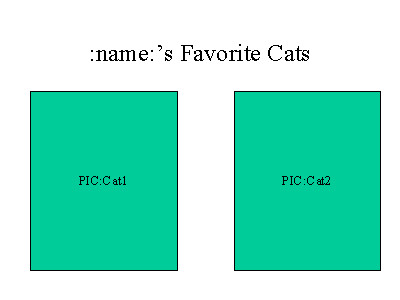
As you can see from the data file and from this slide, you can use multiple pictures, so long as each has a unique name. You can have more than one picture on a slide and you can use the same picture multiple times on one slide or on different slides.
After you've created and saved your template file, all you need to do is click the Merge button on the ribbon to start the merge. Merge asks you to choose the data file and a folder to save the newly created merged presentations to. Then it merges and saves your new presentations while you take it easy. Here's what one of the merged example presentations looks like:



Obviously, you'll want to make your sound placeholders a wee bit smaller.
And probably drag them off the slide.

Since these are just screen captures of a presentation, the sounds and movies aren't live links here on the web, but they work just as you'd expect them to in the actual merged presentations you create with Merge.
[Previous] [Home] [Next]